The Help Menu
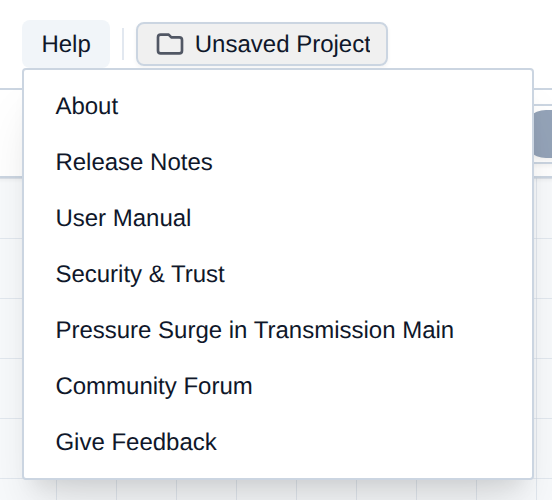
The Help menu is version info, the rolling changelog, this manual, security notes, a published surge demo, the community forum, and a feedback form. It stays available in EPS and MOC and is not greyed during a run.
Here is a breakdown of every option in the Help menu:
- About: App version, open-source libraries, and the license / EULA.
- Release Notes: In-app changelog for cloud deploys.
- User Manual: Opens this documentation in a new tab.
- Security & Trust: Opens the security whitepaper in a new tab.
- Pressure Surge in Transmission Main: Opens the published water-hammer example in a new tab (same model as the website demo).
- Community Forum: Opens the R-THYM forum section in a new tab.
- Give Feedback: Bug reports and feature requests, with an optional screenshot.
About
Open Help → About for the build you are running and the libraries behind it.
- Open Help and choose About.
- On the About tab, read the version badge and the short product description.
- Open Libraries for RTHYM-MOC, EPANET-JS, Chart.js, Panzoom, Tailwind CSS, and Open-Meteo.
- Open License / EULA for the end-user agreement (also linked from the site Terms of Service).
- Click Close.
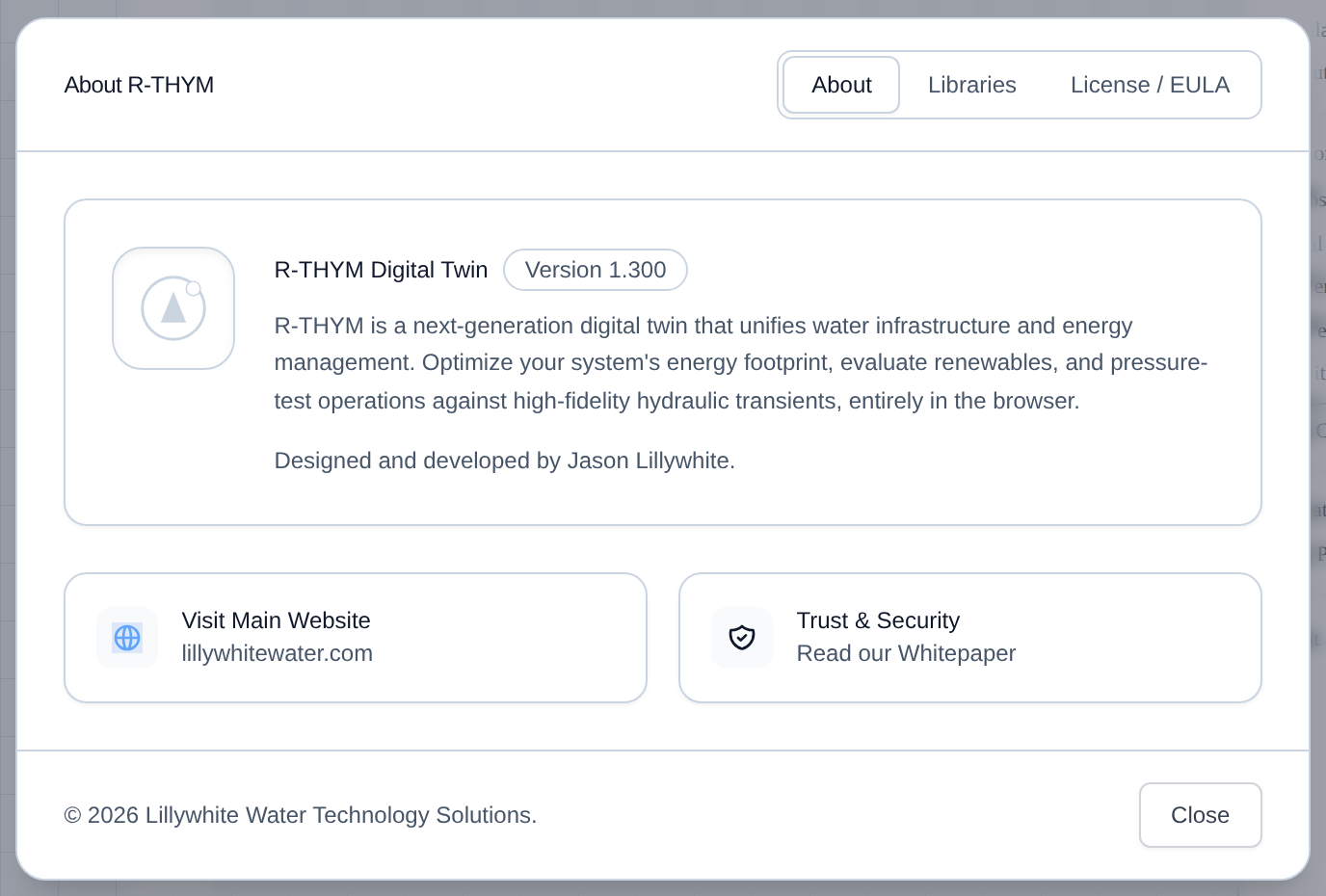
The About tab also links to lillywhitewater.com and the same Trust & Security whitepaper as Help → Security & Trust.
Release Notes
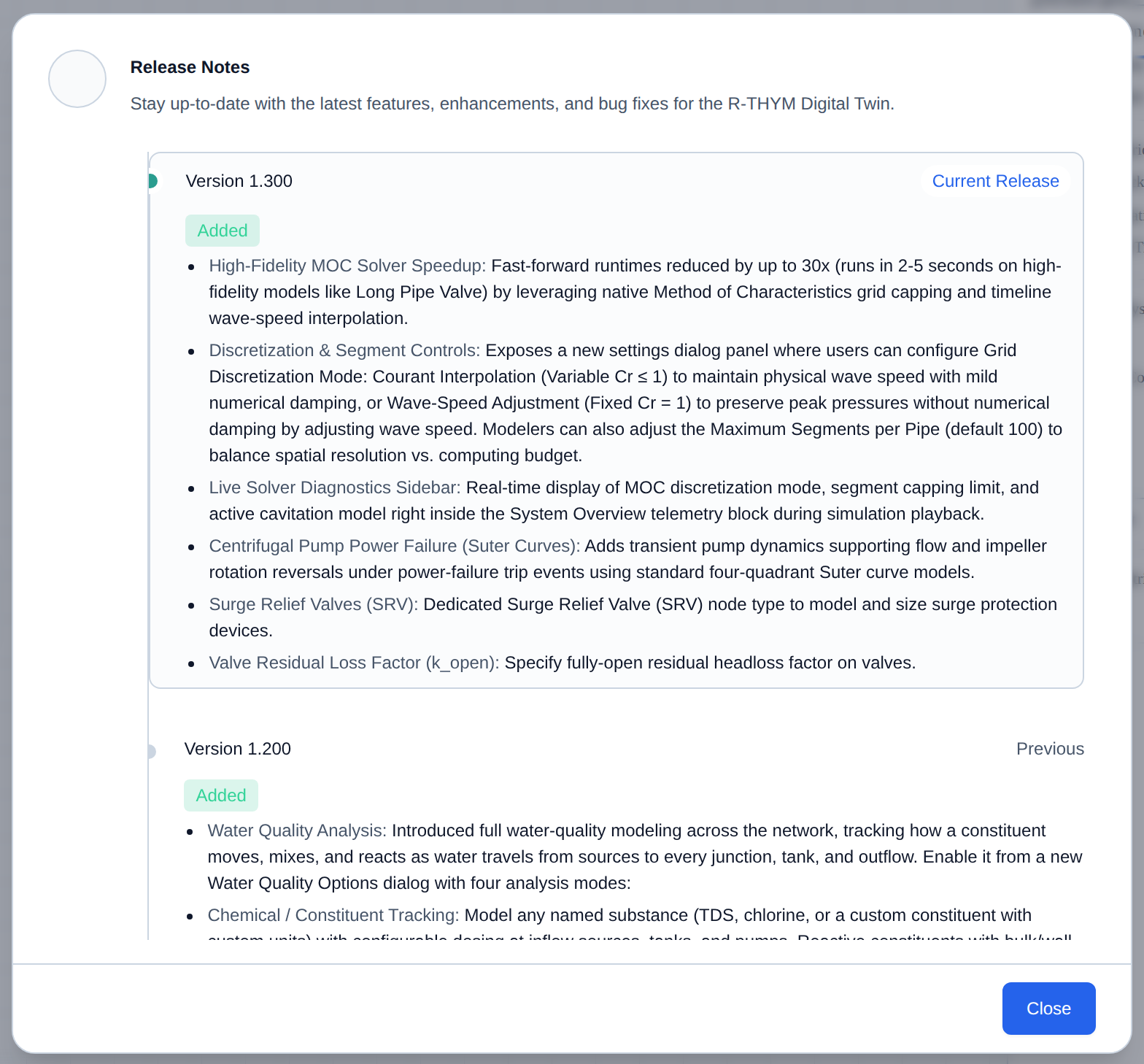
Open Help → Release Notes for what changed in recent cloud deploys. R-THYM updates in place; you do not install a new desktop build.
- Open Help and choose Release Notes.
- Scroll the timeline. The top entry is the current release.
- Click Close.
User Manual
Open Help → User Manual to jump back into this documentation from the editor. The link opens a new browser tab at the R-THYM user manual.
- Open Help and choose User Manual.
- Use the table of contents in the new tab to find a topic.
Security & Trust
Open Help → Security & Trust for the public security whitepaper (new tab): Security Whitepaper. Account privacy, client-side simulation, and 2FA are also summarized in Security and Data Privacy.
- Open Help and choose Security & Trust.
- Read the whitepaper in the new tab.
Pressure Surge in Transmission Main
Open Help → Pressure Surge in Transmission Main for the published water-hammer example. It is the same model as Play Demo on the website and File → Open Example.... The link opens a new tab in MOC so the project you were editing stays put.
- Open Help and choose Pressure Surge in Transmission Main.
- In the new tab, click Play. Close a valve (or change its closure time) to see the surge wave.
This is a copy of the master example, not your saved project. Use Save As if you want to keep edits. The other published examples are listed in Exploring the Example Models.
Community Forum
Open Help → Community Forum for the R-THYM forum (new tab): questions, answers, and product discussion.
- Open Help and choose Community Forum.
- Sign in if you want to post or subscribe to the section.
Give Feedback
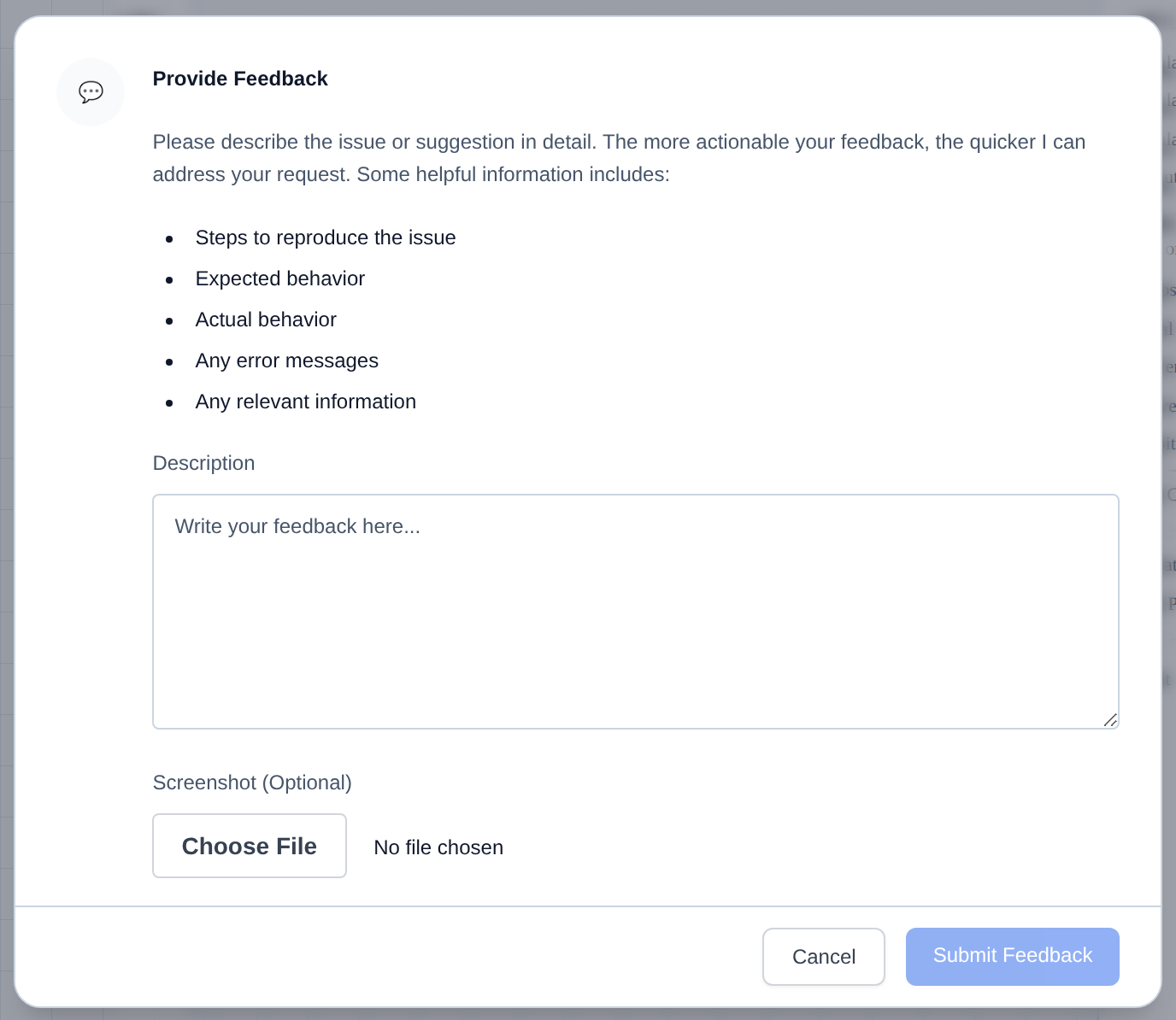
Open Help → Give Feedback to send a bug report or feature request from the editor. The form can attach the current project id when you are in a saved model.
- Open Help and choose Give Feedback.
- Describe the issue or request. Include steps to reproduce, expected vs actual behavior, and any error text.
- Optionally attach a Screenshot.
- Click Submit Feedback.
[!TIP] A short reproduce list plus a screenshot is the fastest way to get a fix.