User Interface (UI) Overview
Canvas Notes
Adding Notes to the Canvas
To help document your model and keep your workspace organized, you can add customizable text notes directly to the canvas. These are purely visual tools and do not affect the hydraulic simulation.
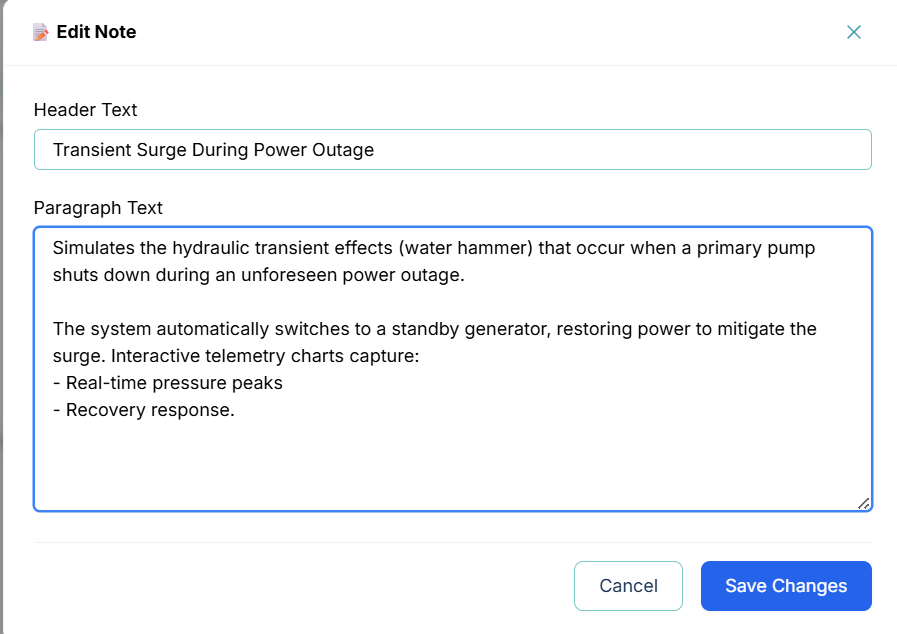
Creating and Editing a Note
- Click and drag the Note icon from the toolbar onto your canvas.
- Resize the note block to fit your desired space.
- Double-click the note to open the Edit Note dialog.
Formatting Options
The note component supports lightweight formatting to help structure your descriptions:
- Header Text: Acts as the title of your note (e.g., "Transient Surge During Power Outage").
-
Paragraph Text: The main body of your description.
- Use blank lines to create paragraph spaces.
- Start lines with a hyphen (
-) or an asterisk (*) to create bulleted lists. - Start lines with
1.to create numbered lists. - Create hyperlinks using the format
[Anchor Text](URL)or by pasting a raw URL.